Broken WordPress images after migration usually point to a file-path, URL, HTTPS, permissions, caching or database-reference problem. Diagnose one image request before changing the entire media library.
This guide focuses on the practical decision points for wordpress media images not showing after migration. The examples are educational and should be adapted to your site, provider, client agreement or application requirements rather than copied without verification.
WordPress Images Not Showing After Migration: Practical Guide
Before you start: gather the right information
Write down the current environment, version numbers or business requirements. For a live website, create a known-good backup and make potentially disruptive changes on staging first. For business documents, confirm the client, scope and acceptance criteria before using a sample.
Step-by-step walkthrough
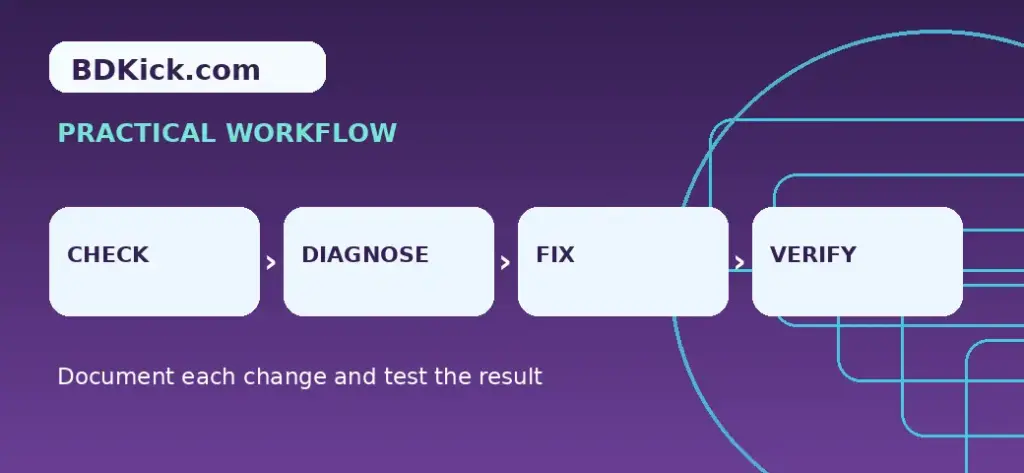
- Right-click a broken image and open its image URL; record whether the browser returns 404, 403 or a mixed-content error.
- Confirm wp-content/uploads and year/month subfolders were transferred from the original hosting account.
- Check file ownership and permissions with the host; do not make uploads world-writable.
- Inspect WordPress Address and Site Address and compare the image URL with the live domain.
- If the domain changed, run a serialization-aware search/replace tool after a full database backup.
- Regenerate thumbnail sizes only if source images exist and image-size files are missing.
- Clear CDN and page caches, then retest representative media in the editor and on the frontend.
Worked example or reference template
Read the image URL response
| Result | Likely investigation |
|---|---|
| 404 | Missing file, outdated path or rewrite issue |
| 403 | Permissions, hotlink rules, WAF or origin restrictions |
| Blocked mixed content | HTTP image URL on an HTTPS page |
| 200 but blank | Invalid file contents, lazy-loading script or CSS display problem |
How to verify the result
Check the output from the perspective of the person who will use it. Test the critical workflow, note what was changed and preserve enough evidence to reverse a failed update. For public-facing sites, repeat the check while logged out and on a mobile browser. For templates, verify totals, wording and payment or ownership terms before sharing.
Common mistakes to avoid
- Do not blindly edit serialized SQL using ordinary text replacement.
- Do not assume all 404 images require re-uploading.
- A CDN cache purge cannot recover files that were never transferred.
Related BDKick tutorials
For the next step, see How to Migrate WordPress from cPanel to Hostinger Manually, WordPress Mixed Content After Cloudflare SSL: Safe Fixes. These pages are part of the same article batch; publish the linked posts before promoting this page.
Official documentation and references
Frequently asked questions
Can I regenerate thumbnails to fix every broken image?
No. It helps with missing resized versions but cannot recreate absent original uploads.
Why do images work in admin but not the public page?
Caching, CDN rewriting, lazy loading or frontend access rules may differ.
Should I change uploads permissions to 777?
No. Ask your host to correct ownership and use appropriately restrictive permissions.
How do I change old-domain image URLs safely?
Back up first and use WordPress-aware search-and-replace tooling that handles serialized values.
Final checklist
Confirm the instructions match your specific environment, save a backup or clean document copy, test the main outcome and record any remaining risks. If you are publishing technical guidance, revisit it after major product updates.
Frequently Asked Questions
Can I regenerate thumbnails to fix every broken image?
No. It helps with missing resized versions but cannot recreate absent original uploads.
Why do images work in admin but not the public page?
Caching, CDN rewriting, lazy loading or frontend access rules may differ.
Should I change uploads permissions to 777?
No. Ask your host to correct ownership and use appropriately restrictive permissions.
How do I change old-domain image URLs safely?
Back up first and use WordPress-aware search-and-replace tooling that handles serialized values.