Fix SMTP Authentication Failed in WordPress — Start with a single failed test and work outward from the exact server response. Authentication, connectivity and spam placement are three separate problems; confusing them can waste hours and introduce unsafe configuration changes.
The following steps are intended for website administrators who can safely review their own configuration. Back up working settings before making security or mail-service changes.
Fix SMTP Authentication Failed in WordPress: Complete Guide
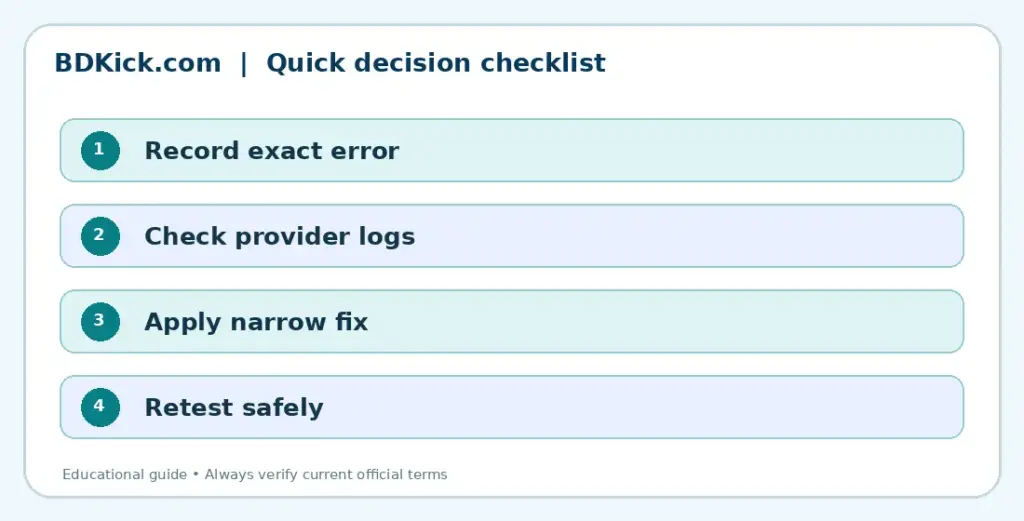
Understand the exact failure
An SMTP authentication failure means WordPress reached a mail server but the server did not accept the login. It is different from DNS delivery failure, an email landing in spam, or an outbound connection timeout. Copy the exact error and timestamp from your mail plugin before changing settings.
A 535 response usually points toward credentials or authentication method, while a connection timeout means you should first check network connectivity and ports. Do not publish screenshots containing passwords, tokens, or complete mailbox addresses.
Confirm the SMTP login and sender
Verify that the SMTP username is the full mailbox address if the provider requires it. Re-enter a current credential or reconnect the OAuth integration. Check that the From Email address is authorized by your provider; aliases and shared mailboxes can have different send-as requirements.
Compare the hostname, encryption method and port against your own email provider’s current instructions. Port 587 commonly uses STARTTLS, while port 465 commonly uses implicit TLS, but do not switch arbitrarily without documentation.
Fix provider-specific authentication
For Google accounts, prefer a supported Sign in with Google/OAuth connection. Google says app passwords require two-step verification and may not be available on managed accounts. If you changed your Google password, a previously generated app password may have been revoked.
For Microsoft 365, inspect the organization’s supported OAuth and SMTP AUTH settings rather than assuming a normal account password will work. For cPanel mailboxes, confirm that the mailbox password, server host and TLS certificate match the actual hosting environment.
Record the result
Write down the original behavior, the setting changed and the result of one controlled retest. Avoid sharing account credentials, authentication tokens or client details in screenshots.
Test and monitor delivery
Send one test message to an external mailbox and inspect plugin logs. If the connection succeeds but mail goes to spam, review SPF, DKIM, DMARC and message reputation separately. Avoid repeated bulk testing while credentials are failing.
After a successful test, check contact-form notifications, WooCommerce transactional emails and password-reset delivery. Keep a working log entry for future changes and update secrets securely.
Related BDKick guides
Continue with these related explanations after importing the full article pack:
Official sources and further reading
Final guidance
Make the smallest necessary change, test it, and keep the secure configuration that works. If a provider-side restriction persists, share the exact non-sensitive error with that provider’s support team.
Frequently Asked Questions
Does SMTP error 535 mean my DNS is wrong?
Usually it indicates rejected credentials or authentication method, not an MX record error.
Can I use my normal Gmail password?
Use a supported Google OAuth connection when possible; an app password has specific eligibility requirements.
Will an SMTP plugin guarantee inbox delivery?
No. Authentication and inbox placement are different issues.