Google Workspace emails going to spam after domain migration usually means something changed in how your domain authenticates mail, which server sends it, or how recipient providers evaluate it. Start by checking your live DNS zone, SPF, DKIM and DMARC; then inspect an actual message’s authentication results. If those pass, review the sending application and sender reputation instead of repeatedly changing records.
This walkthrough applies whether you moved your domain registrar, changed nameservers, transferred your website to a new host, or moved email from a previous provider to Google Workspace. Moving the website and moving email are separate operations. An MX record primarily controls where incoming mail arrives; SPF, DKIM and DMARC help receivers assess mail sent as your domain.
How to Fix Google Workspace Emails Going to Spam After Domain Migration
Quick diagnosis: which messages are affected?
| Symptom | Start here |
|---|---|
| Messages sent directly from Gmail land in spam | SPF, DKIM, DMARC, domain reputation and content |
| Only WordPress contact forms or invoices land in spam | Website SMTP service, From address, alignment and sender authorization |
| Messages are not received at all | MX records, account activation, routing and bounce logs |
| Delivery failed after a nameserver change | Records missing from the currently authoritative DNS provider |
| Only forwarded messages land in spam | Forwarding, DKIM signature preservation and ARC handling |
Before editing DNS, send one test message directly from your Google Workspace Gmail mailbox to a personal Gmail inbox. Send a second one using the website contact form or application. Different outcomes point to different causes.
1. Check the authoritative DNS zone after your migration
When nameservers change, records left at the previous DNS host may no longer be published. In your domain registrar, confirm the active nameservers, then open the matching DNS provider (for example, Cloudflare or the host now managing DNS). Review the records for the domain used in the email address, not just the website domain if they differ.
- Check the domain’s current NS delegation with a public DNS lookup tool.
- At the authoritative provider, look for MX, a single correctly assembled SPF TXT record, the Google DKIM TXT record, and a DMARC TXT record.
- Compare them with the settings and instructions in your Google Admin console.
- Keep website A, AAAA and CNAME records intact unless there is a separate website issue.
For incoming mail, Google documents the MX values for current and some legacy Workspace configurations. Use Google’s official MX setup instructions for your particular account; do not mix an old provider’s MX records with the intended new delivery route.
Important distinction: a wrong MX record usually breaks inbound delivery rather than directly causing your outgoing mail to appear in spam. It is still an essential migration check.
2. Fix the SPF record without creating duplicates
Sender Policy Framework (SPF) authorizes servers to send mail using your domain’s envelope sender. If you send mail only through Google Workspace, Google’s documented baseline SPF value is:
v=spf1 include:_spf.google.com ~allPublish this as a TXT record on the sending domain using the name/host format your DNS provider expects (often @ for the root domain). If you also send from a newsletter tool, CRM, transaction-mail service or old host, that provider may need authorization too. Do not blindly replace an existing SPF record until you identify all legitimate senders; combine authorized sources into one SPF record. Multiple SPF TXT records for the same domain can cause a permanent error.
See Google’s SPF setup guide for the authoritative syntax and multi-sender setup.
3. Generate and activate DKIM in Google Workspace
DomainKeys Identified Mail (DKIM) signs messages so recipients can verify that the signed content was not modified in transit and that the signing domain controls the key. During migration, the old DKIM DNS record may disappear, or the new account may use a different selector.
- Sign in to Google Admin Console as an authorized administrator.
- Go to Apps → Google Workspace → Gmail → Authenticate email (menu labels can vary).
- Select the correct domain and generate a DKIM record if needed. Prefer a 2048-bit key where your DNS provider supports it.
- Publish the exact DNS TXT record generated by Google, including its selector and full public key.
- After the record resolves, return to Admin Console and select Start authentication.
Publishing the TXT record alone is not the same as enabling signing. Allow for DNS propagation, then send a fresh test message. Review Google’s DKIM instructions.
4. Set up DMARC with the right alignment
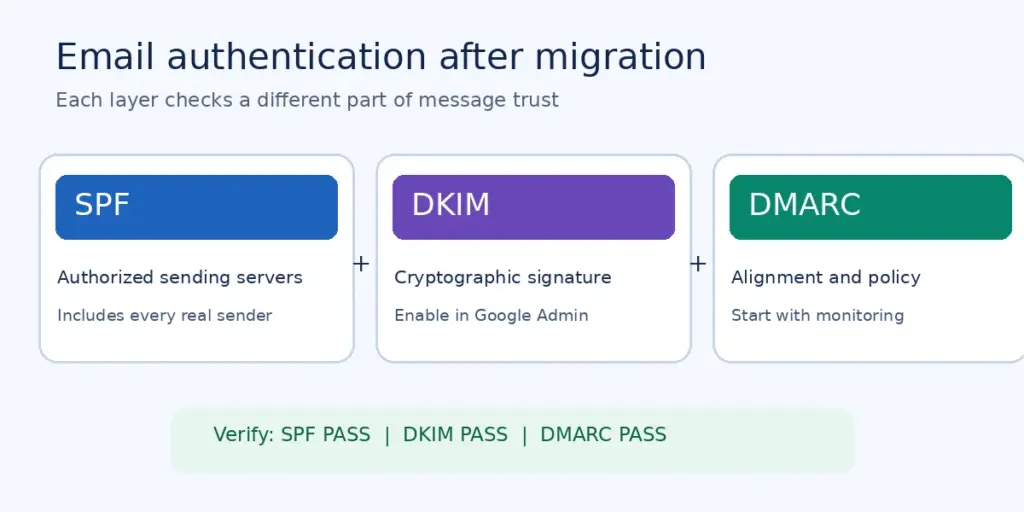
DMARC uses SPF and/or DKIM results together with domain alignment to evaluate mail that claims to come from your visible From address. A message can pass SPF for one domain and still fail DMARC if that domain does not align with the From domain.
For a domain starting DMARC monitoring, a minimal example is:
Host: _dmarc
Type: TXT
Value: v=DMARC1; p=none
This example does not send aggregate reports; add a valid rua=mailto:... destination only if you control and are prepared to process reports. After confirming legitimate mail passes authentication, consider gradually enforcing quarantine or reject with monitoring. Do not switch to p=reject during migration without accounting for all legitimate senders.
Read Google’s DMARC setup documentation and Gmail sender guidelines.
5. Inspect an actual message in Gmail: Show original
- Send a new email from the affected Workspace address to a personal Gmail account you control.
- Open the received message, even if it is in Spam.
- Click the three-dot menu near Reply and select Show original.
- Look for the authentication results:
SPF: PASS,DKIM: PASS, andDMARC: PASS. - Check the signed domain (
d=) and SPF domain against your visible From address if DMARC fails.
SPF, DKIM and DMARC passing is a strong foundation, but does not guarantee inbox placement. Gmail also evaluates abuse signals, recipient feedback and message quality. If authentication fails, fix the exact failing mechanism before troubleshooting copy or sending volume.
6. Check WordPress, forms and third-party email senders
It is common for direct Google Workspace email to work while WordPress emails still go to spam. Moving a website may move its default PHP mail sending server without moving the Google Workspace mailbox. A contact form, WooCommerce invoice or password-reset email might now originate from an unauthorized web server.
- Review your WordPress SMTP plugin and determine whether mail is sent via Google Workspace or another transactional email provider.
- Verify that the sending service is authorized in SPF and, preferably, signs outgoing mail with an aligned DKIM domain.
- Use a legitimate From address from the sending domain; put visitors’ email addresses in Reply-To, not an impersonated From address.
- Send a separate test from your actual form or store and inspect its original authentication headers.
- Check the SMTP service’s logs and the Google Workspace admin logs for delivery failures.
Fixing SPF for Google Workspace alone will not authorize an unrelated website mailer. Configure each sending platform according to its documentation.
7. Review forwarding and reputation if authentication passes
If all three checks pass but email still lands in spam, look beyond DNS. A newly used domain, a sudden sending spike, bounced addresses, unsolicited marketing, suspicious links or a compromised mailbox can create negative signals. Avoid buying lists or trying to force inbox placement with misleading subject lines.
Use Google Postmaster Tools for applicable sending domains and Gmail traffic. Monitor complaint rates and authentication; low-volume domains may not have enough data for every dashboard. Google’s sender guidance recommends keeping spam rates below 0.10% and avoiding 0.30% or higher. Source: Gmail sender guidelines.
Forwarded mail can fail SPF because the forwarding server is not authorized by the original sender. Google recommends DKIM, and forwarding systems should avoid modifying DKIM-signed content. See Google’s forwarding best practices.
8. Give DNS changes time, but verify the result
DNS caches can retain older values during the record’s TTL period. Do not assume a saved control-panel setting is already visible publicly. Query the new MX/TXT records from an independent resolver, then repeat the Gmail “Show original” test using a newly sent message. Older messages do not retroactively change their authentication results.
If mail remains undeliverable, capture the full SMTP bounce code. For example, Gmail’s 5.7.26 can indicate authentication or DMARC-related failures. Consult Gmail SMTP error codes before changing unrelated settings.
Common mistakes to avoid during a migration
- Editing the old DNS hosting account after nameservers have moved.
- Publishing two separate
v=spf1records for the same hostname. - Copying another business’s DKIM public key or missing its selector.
- Creating a DMARC
p=rejectpolicy before all genuine senders pass. - Assuming MX records prove outbound emails are authenticated.
- Testing only Workspace Gmail and not the site’s contact form or billing software.
- Expecting authentication changes alone to cure a damaged sender reputation.
Frequently Asked Questions
Why did emails start going to spam right after changing nameservers?
The active DNS zone may be missing SPF, DKIM or DMARC, even if those records still exist at the previous provider. Check the authoritative nameservers and published TXT records first.
Can Google Workspace emails go to spam even with correct MX records?
Yes. MX mainly controls incoming delivery. Sending reputation, SPF, DKIM, DMARC alignment and message quality affect outgoing deliverability.
Should I add both Google and my website host to SPF?
Only if both are legitimate senders for the same domain. Identify every sender and build one valid SPF record, or route WordPress mail through an authenticated service.
How do I know whether DKIM is working?
Enable authentication in Google Admin, send a fresh test message, and inspect the received message using Gmail’s Show original feature. Look for DKIM PASS with a domain matching your setup.
How long after updating SPF or DKIM will spam stop?
DNS changes must become publicly visible, and subsequent messages need to be tested. Even after authentication passes, inbox placement depends on additional reputation and content signals; there is no guaranteed recovery time.
Do I need to change my website hosting to fix Google Workspace email?
Usually not. Website hosting and Workspace email can use different providers. Edit the DNS records and sending configuration relevant to the mail service, not the website’s hosting plan unnecessarily.
Final checklist
Confirm the active DNS provider; validate incoming MX records; publish one complete SPF policy; enable Workspace DKIM; monitor DMARC alignment; test direct Gmail and application-generated messages separately; and review Postmaster Tools where data is available. These checks address the most common migration-related configuration mistakes without risking unrelated website settings.
Primary reference: Google’s email sender guidelines. Always use your own Google Admin record values for domain-specific setup.
Frequently Asked Questions
Why did emails start going to spam right after changing nameservers?
The new authoritative DNS zone may be missing SPF, DKIM, or DMARC records. Check the publicly served TXT records instead of relying on the old DNS panel.
Can Google Workspace emails go to spam with correct MX records?
Yes. MX controls inbound delivery, while sender authentication, reputation and content affect outbound spam classification.
Should Google and my web host both appear in SPF?
Only if both really send mail for your domain. Keep one correctly combined SPF record or use an authenticated SMTP service.
How do I know DKIM is working?
Enable DKIM signing in Google Admin, send a new test message and check DKIM PASS in Gmail Show original.
How long does it take for spam problems to resolve?
DNS propagation varies by TTL, and reputation recovery has no guaranteed timeline. Check fresh message headers rather than assuming changes worked.
Do I need to migrate my website again?
Usually not. A website and Google Workspace email can remain at separate providers; correct only the relevant DNS and outbound mail settings.