A 300×80-pixel signature image is a common format requested by online forms. The key is to preserve a clean handwritten signature while meeting the exact pixel dimensions and any file-size or format requirements specified by the receiving website.
This guide focuses on the practical decision points for how to resize signature to 300×80 pixels online. The examples are educational and should be adapted to your site, provider, client agreement or application requirements rather than copied without verification.
How to Resize a Signature to 300×80 Pixels Online: Practical Guide
Before you start: gather the right information
Write down the current environment, version numbers or business requirements. For a live website, create a known-good backup and make potentially disruptive changes on staging first. For business documents, confirm the client, scope and acceptance criteria before using a sample.
Step-by-step walkthrough
- Start with a clear photo or scan of your signature on plain white paper.
- Crop away excess blank margin so the signature fills most of the image area without touching the edges.
- Use a reputable local or browser-based image editor that supports exact width and height.
- Preserve aspect ratio where possible; add a white or transparent canvas to reach 300×80 rather than stretching handwriting.
- Export as PNG or JPG according to the application’s rules and check whether transparency is accepted.
- Inspect pixel dimensions, file size and legibility at actual display size.
- Avoid uploading signatures to an unknown service if you can resize locally on your device.
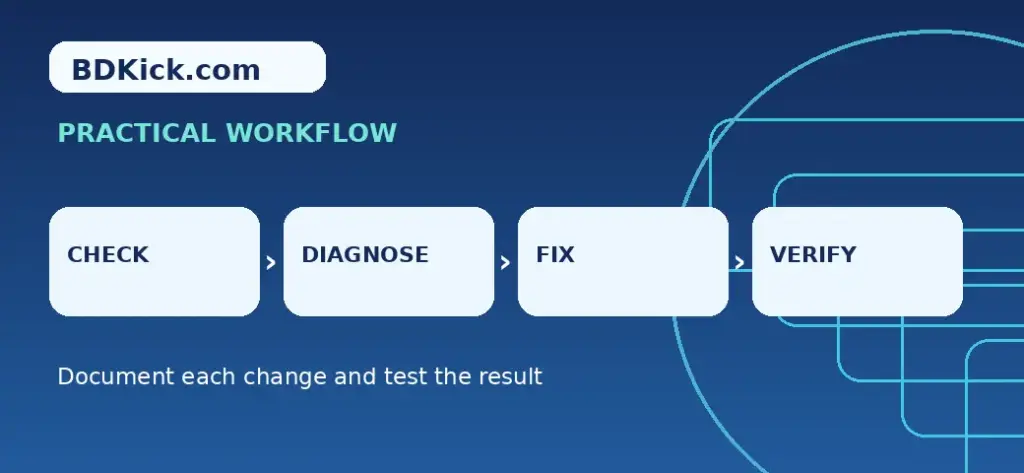
Worked example or reference template
Resize math and practical settings
Target canvas: 300 px wide × 80 px high, aspect ratio 3.75:1. If the cropped signature is proportionally taller, scale it to fit inside the box and add whitespace around it. On macOS Preview, Windows Photos or image editors, set image/canvas dimensions and verify the exported file’s properties.
How to verify the result
Check the output from the perspective of the person who will use it. Test the critical workflow, note what was changed and preserve enough evidence to reverse a failed update. For public-facing sites, repeat the check while logged out and on a mobile browser. For templates, verify totals, wording and payment or ownership terms before sharing.
Common mistakes to avoid
- Do not stretch a signature to fit an arbitrary shape.
- Do not assume the required file size is the same as the required pixel dimensions.
- A personal signature can be sensitive; prefer trusted tools and delete temporary copies.
Related BDKick tutorials
For the next step, see PHP MySQL CRUD Project for Beginners (Secure PDO Example), WordPress Freelancing Portfolio Examples for Beginners. These pages are part of the same article batch; publish the linked posts before promoting this page.
Frequently asked questions
Can I resize to exactly 300×80 without distorting?
Yes. Fit the signature inside a 300×80 canvas with padding instead of stretching it.
Should I use PNG or JPG?
Follow the target application requirements. PNG can preserve clear edges; JPG may be necessary for some forms.
What if the form says file too large?
Reduce export quality or optimize the image while keeping required dimensions.
Is it safe to upload my signature to any online tool?
No. Use a trustworthy privacy policy or local editor for sensitive identity graphics.
Final checklist
Confirm the instructions match your specific environment, save a backup or clean document copy, test the main outcome and record any remaining risks. If you are publishing technical guidance, revisit it after major product updates.
Frequently Asked Questions
Can I resize to exactly 300×80 without distorting?
Yes. Fit the signature inside a 300×80 canvas with padding instead of stretching it.
Should I use PNG or JPG?
Follow the target application requirements. PNG can preserve clear edges; JPG may be necessary for some forms.
What if the form says file too large?
Reduce export quality or optimize the image while keeping required dimensions.
Is it safe to upload my signature to any online tool?
No. Use a trustworthy privacy policy or local editor for sensitive identity graphics.